 Storage Bee
Giving Storage Bee permission
macOS is careful: it asks before any app can look inside your folders. That's a good thing — and Storage Bee only asks for what it needs to help you manage your storage. Here's exactly what you'll see and why.
The simple pop‑ups (most of the app)
When Storage Bee checks your Desktop, Documents, or Downloads, macOS shows a little box that says something like "Storage Bee would like to access files in your Downloads folder." Just click Allow. That's it — no settings to dig through.
Full Disk Access (to reach other apps' files)
To clear other apps' caches and logs (the temporary files that pile up the most), macOS needs one extra permission called Full Disk Access. For security, Apple doesn't allow a simple pop‑up for this one — you add the app yourself, once. Every storage app that manages other apps' files works this way.
Storage Bee makes it easy: when it needs this, it shows a "Grant Full Disk Access" button that takes you straight to the right settings page. Here's the whole thing:
- In Storage Bee, click Grant Full Disk Access (or open System Settings → Privacy & Security → Full Disk Access).
- Click the + button at the bottom of the list.
- Find Storage Bee in your Applications folder and click Open. (Tip: press ⌘⇧A to jump to Applications.)
- Make sure its switch is turned on (blue).
- Quit and reopen Storage Bee, then scan again.
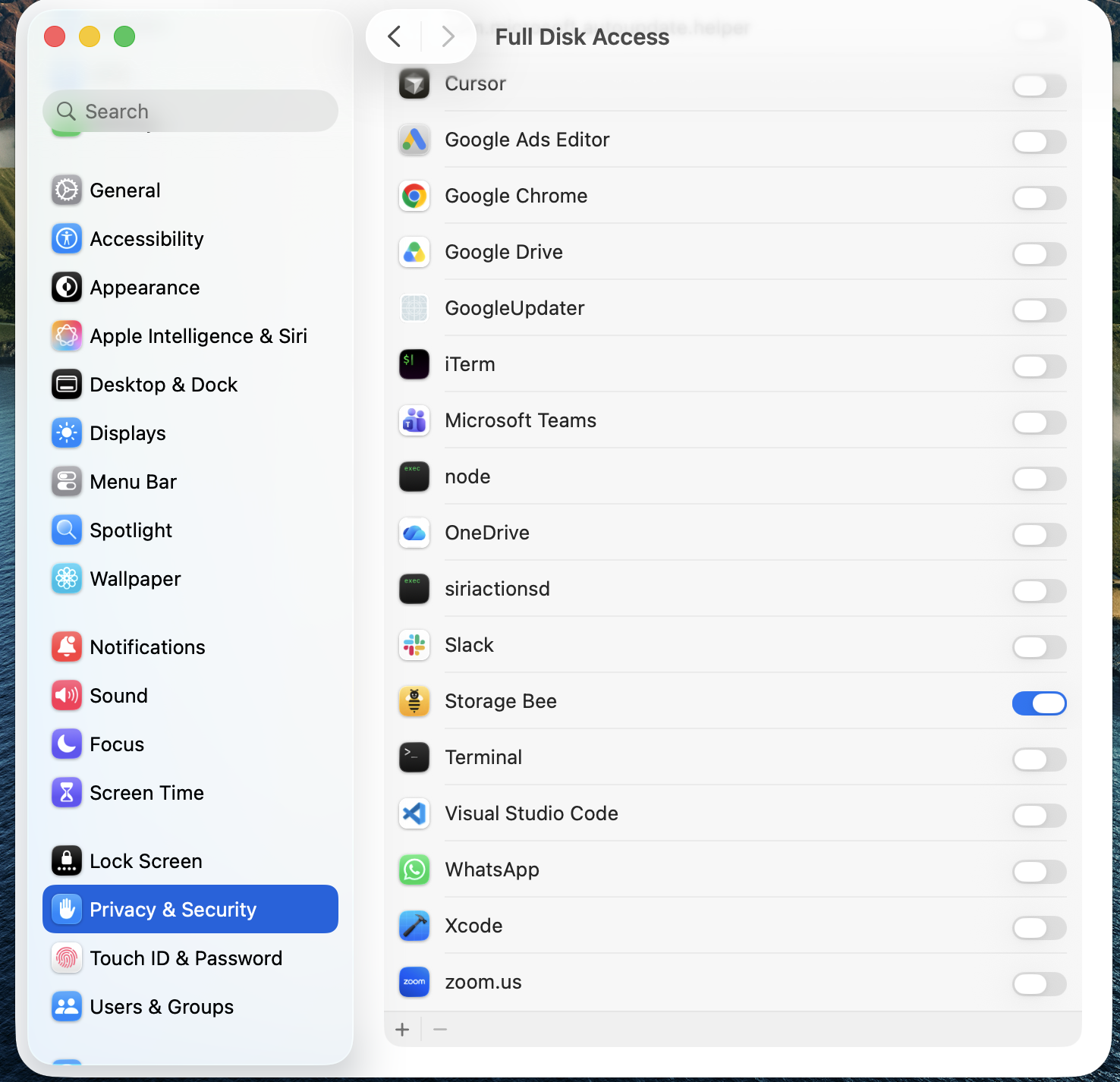
You only do this once. After that, Storage Bee remembers it.
Your privacy stays yours
Giving access lets Storage Bee look so it can help you manage your storage — that’s all. Everything happens on your Mac. Storage Bee never uploads your files, never tracks you, and has no account to sign into. You can change any permission later in System Settings → Privacy & Security.
Allow the pop‑ups, add Full Disk Access once, and you're ready to free up space.
⬇︎ Download Storage BeeStill stuck? Email us at cg@prpwebs.com — we're happy to help.