 Storage Bee
Open it and pick what to check
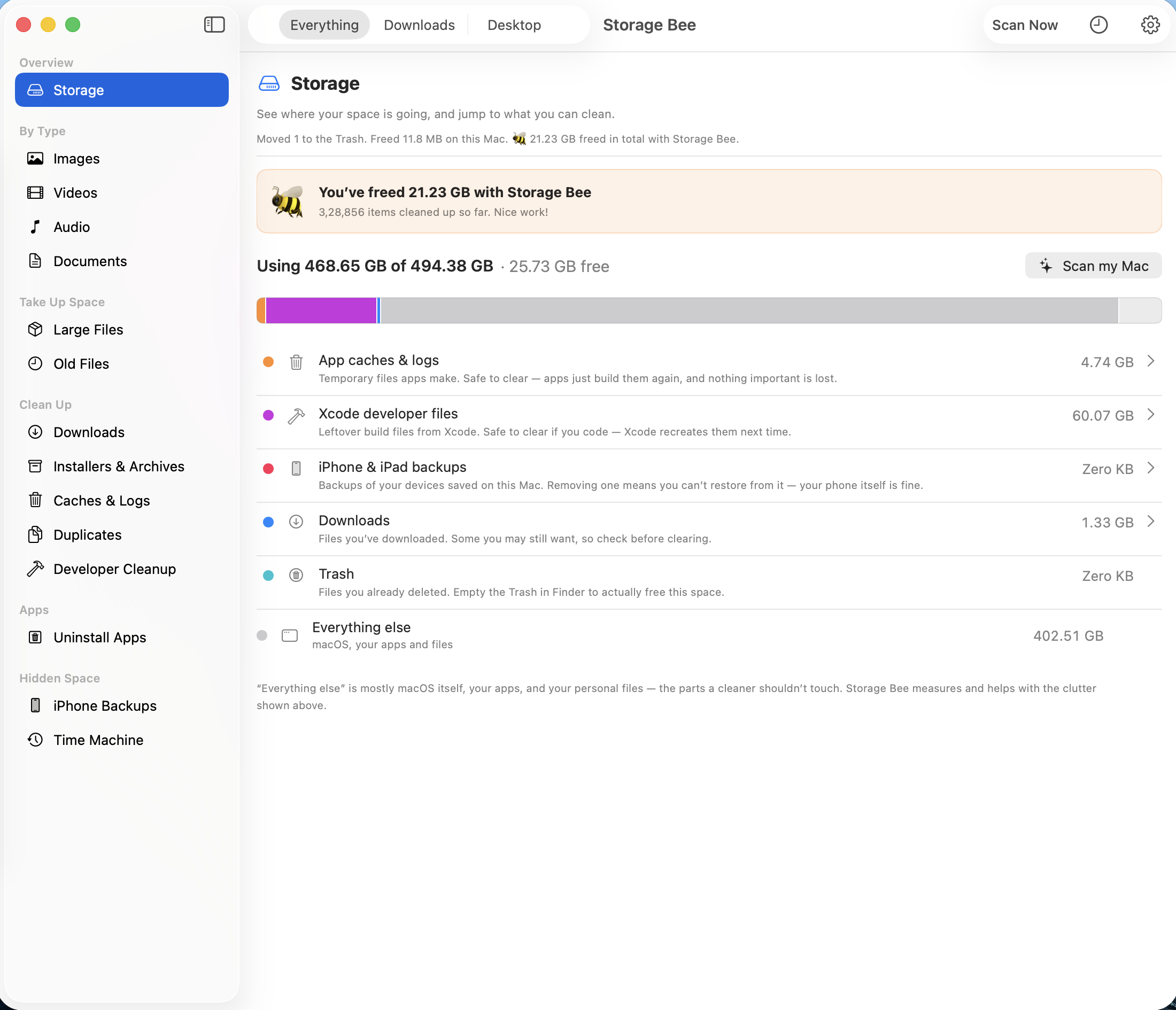
When you open Storage Bee, you land on the Storage screen — a simple picture of where your space is going. Choose Everything to check your whole Mac, or a single folder like Downloads, then click Scan Now.
No tech know‑how needed. Scan, review, free up space — and undo anytime.
When you open Storage Bee, you land on the Storage screen — a simple picture of where your space is going. Choose Everything to check your whole Mac, or a single folder like Downloads, then click Scan Now.
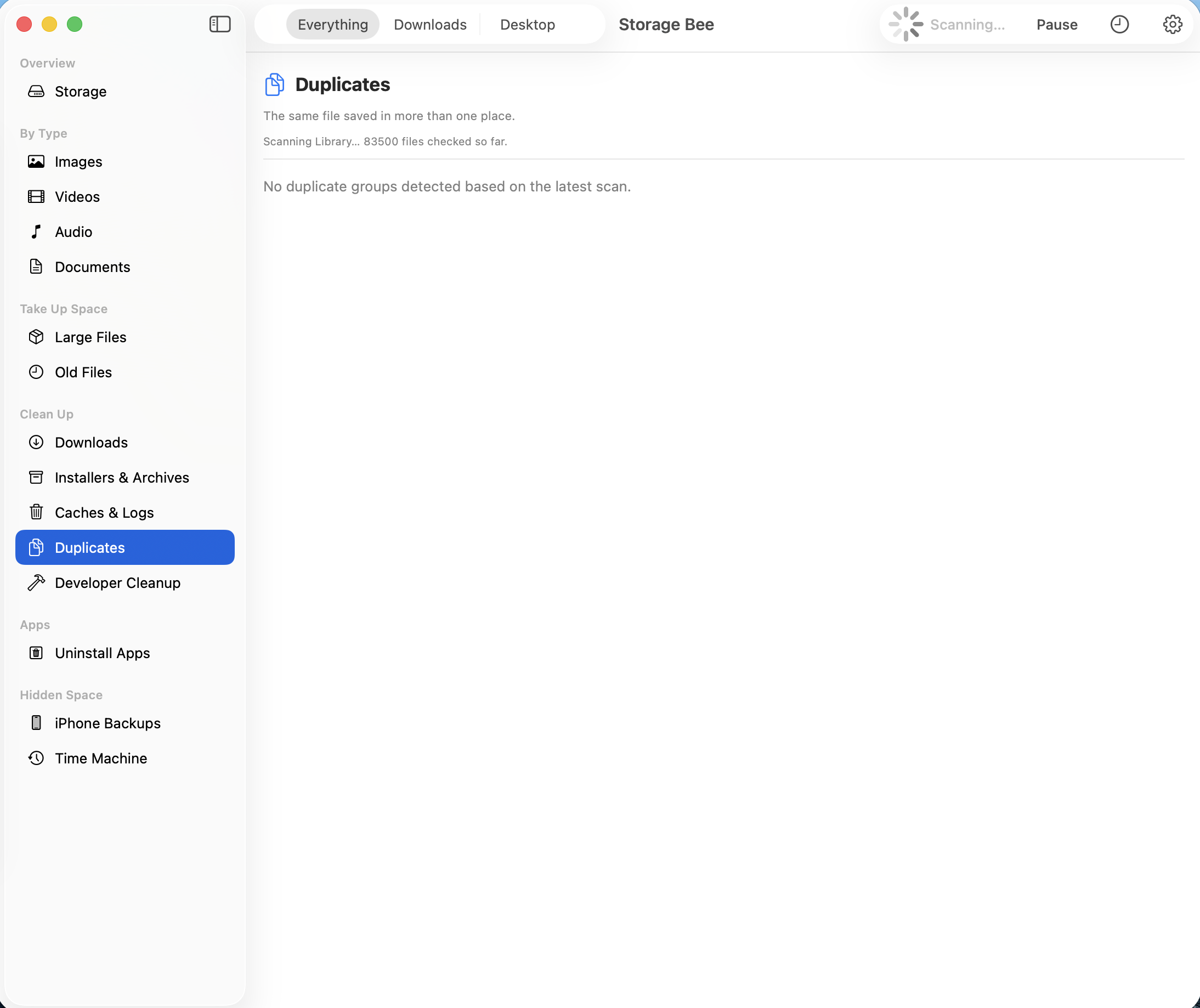
Files stream in as they're found, sorted into clear groups: big files, old files, duplicates, caches, and more. Each one shows its size, where it lives, and a plain label telling you if it's safe to delete. Click any file and press the Space bar to peek inside it, just like in Finder.
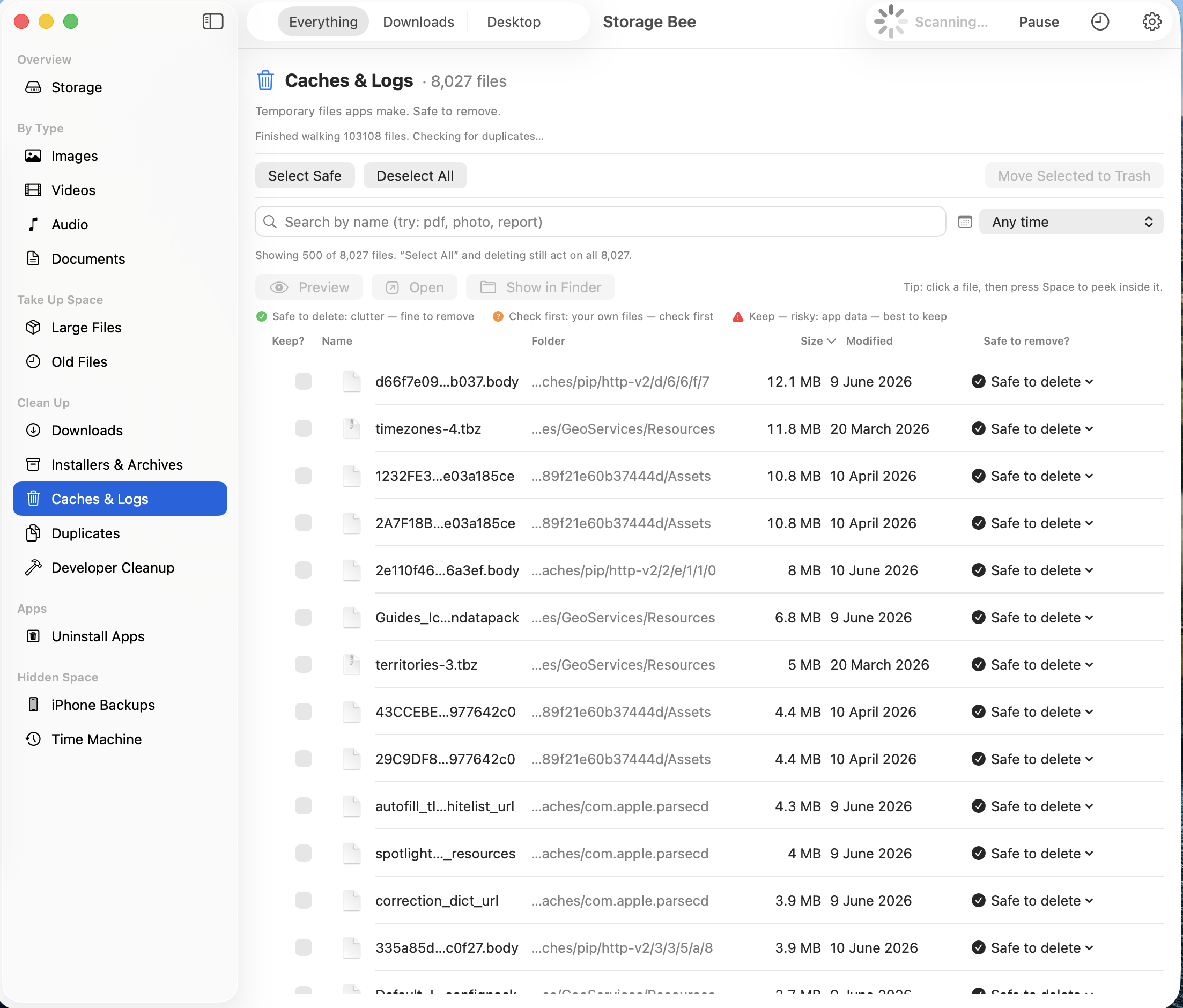
Tap Select Safe to pick only the clutter that's fine to remove (your personal files are never auto‑picked), then Move to Trash. That's it. If you ever change your mind, everything's still in your Trash — just put it back.
No account, no card. macOS 13 or later.