Free up space on your Mac.
We show you what's safe to delete.

Storage Bee finds what's eating your disk and tells you, in simple words, what you can safely remove — then clears it in one click. Nothing is gone for good; everything goes to the Trash.

macOS 13 or later · Apple silicon & Intel · 14‑day free trial, no card needed

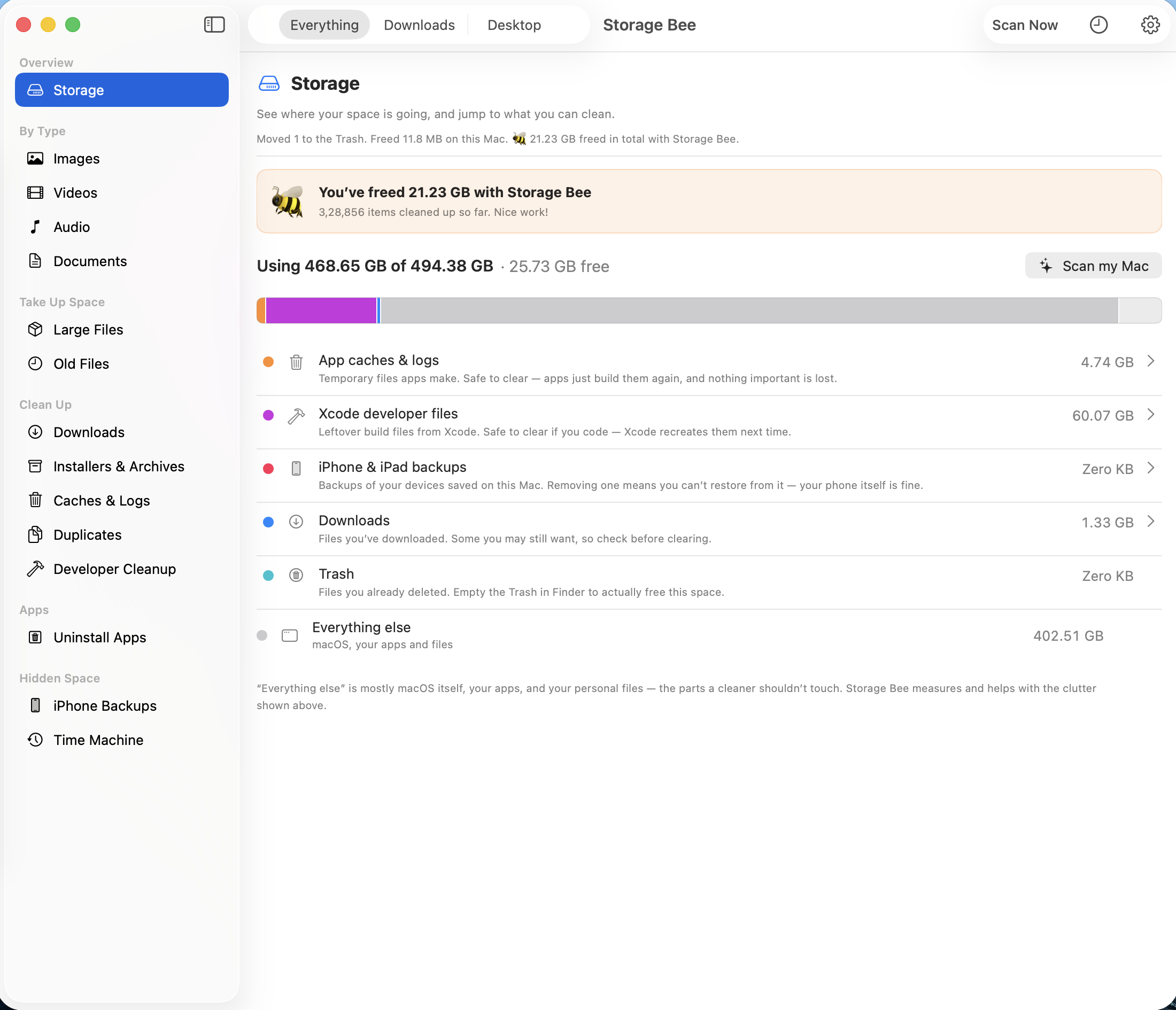
Storage Bee showing where space is going on a Mac
↩️
Always reversible

Files go to the Trash

🔒
Private by design

Nothing leaves your Mac

🍯
One payment

No subscription, ever

🍏
Notarized by Apple

Safe to install

Everything in one friendly sweep

Scan once, and Storage Bee sorts what it finds into clear, plain‑language groups.

🖼️

By type

Images, Videos, Audio and Documents — spot the space hogs fast.

📦

Big & old files

The largest files and the ones you haven't touched in ages.

👯

Duplicates

The same file saved in more than one place — extras pre‑picked for you.

🧹

Caches & logs

Temporary clutter apps leave behind. Safe to remove.

🗑️

App uninstaller

Remove an app completely — including its leftover support files.

📱

Old iPhone backups

Device backups on your Mac are often huge. Clear the ones you don't need.

🕘

Time Machine snapshots

Reclaim space macOS keeps in reserve — your files aren't touched.

📊

Storage map

A simple picture of where your space is going, with honest numbers.

See where it went

Understand your storage at a glance

That mysterious "System Data" hogging your disk? Storage Bee breaks it down into plain groups — caches, developer files, old backups, downloads — and shows how much each one is really using, with no inflated numbers.
Storage overview with a visual disk bar
Know what's safe

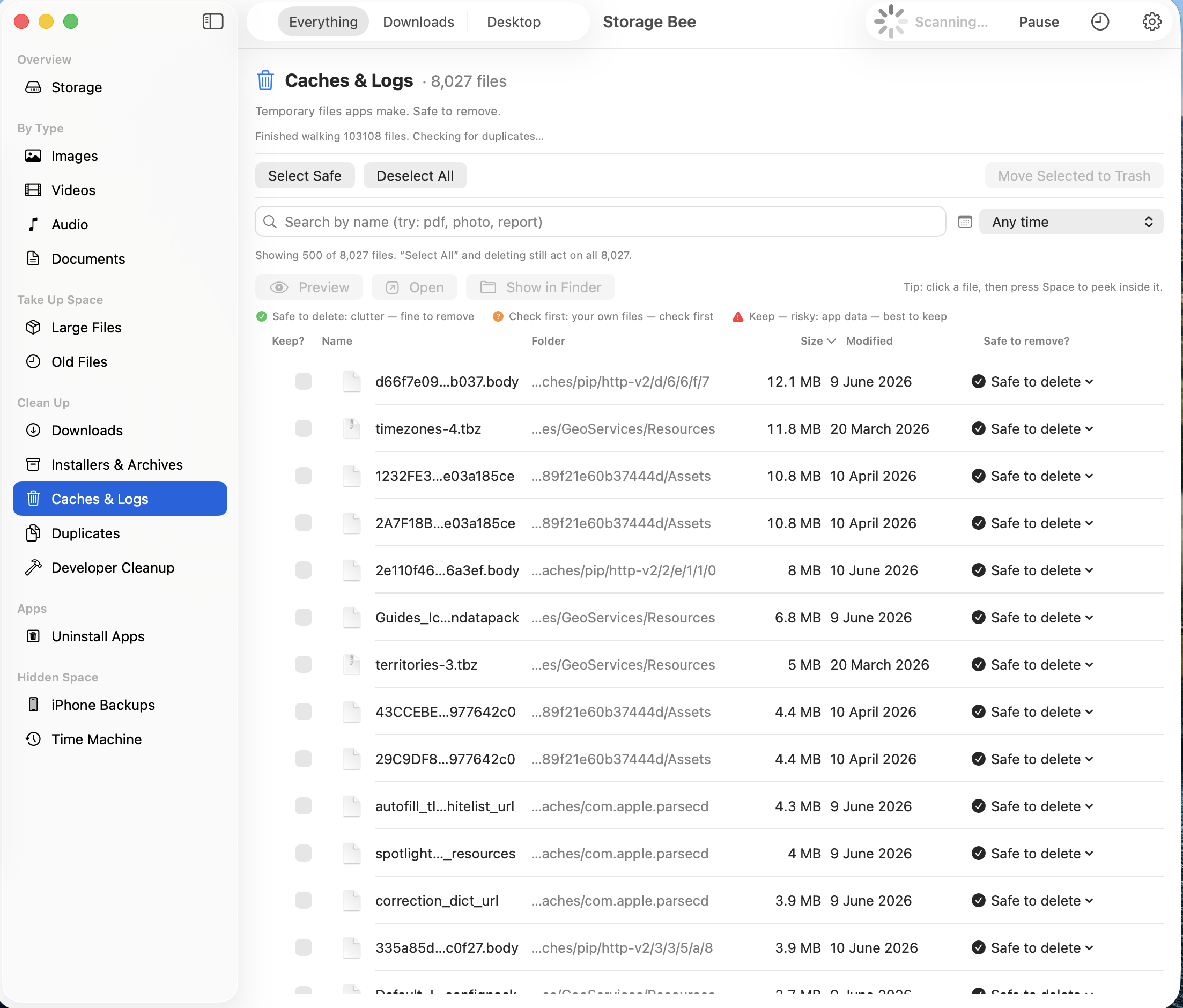
Plain‑English "safe to remove?" labels

Every item gets a clear tag: Safe to delete, Check first, or Keep — risky, with the reason in everyday words. Your own files are never auto‑selected — so you can't sweep up something you wanted.

File list with Safe to delete labels
Remove apps completely

Uninstall apps without the leftovers

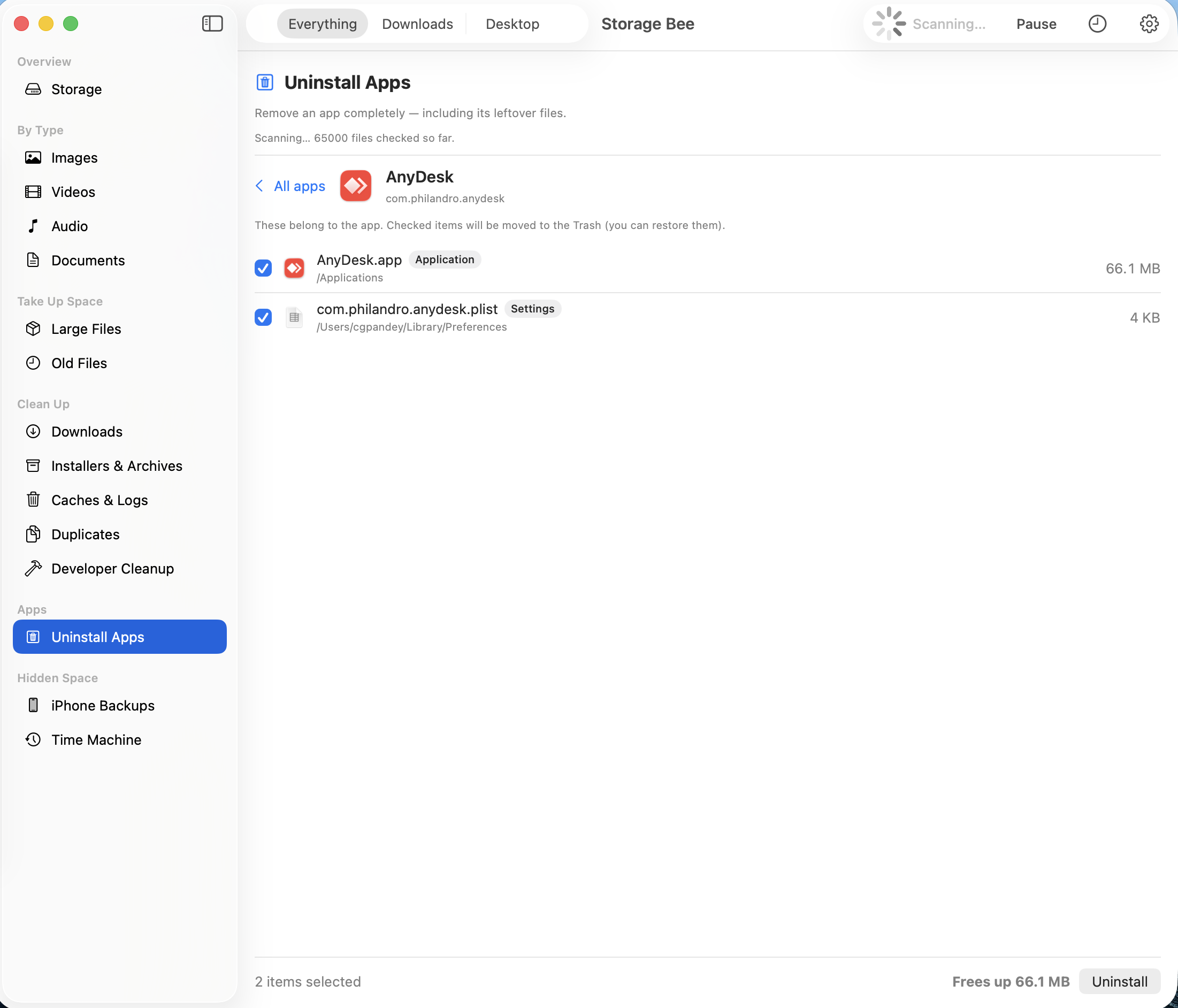
Dragging an app to the Trash leaves bits behind — caches, settings, login items. Storage Bee finds the app and its leftovers and removes them together, so nothing lingers.

App uninstaller showing leftover files

Three steps. That's it.

1

Scan

Pick a place (or your whole Mac) and click Scan Now. Results stream in live.

2

Review

Search, sort by size, and preview anything with a tap of the Space bar.

3

Clean

Check what you don't need and send it to the Trash — recoverable anytime.

Worried about permissions?

macOS asks before any app can look inside your folders — that's a good thing. Storage Bee guides you through it in seconds, and explains exactly why each one is needed. Everything stays on your Mac.

Read the simple permissions guide →

Simple, honest pricing

Try everything free for 14 days. If you love it, pay once — it's yours forever. No subscription, no surprises.

$24 one‑time

vs. ~$35 every year for the big names

  • All cleaning features unlocked
  • Use on your Mac, forever
  • Free updates for version 1
  • 14‑day free trial — no card needed
  • Private & local — nothing uploaded

or start the free trial first →

Get Storage Bee

Free 14‑day trial. No account, no card.

Version 1.0 · macOS 13 (Ventura) or later · Notarized by Apple

Questions, answered

Is it safe? Can I undo a cleanup?

Yes. Storage Bee moves files to your Trash, so you can put anything back until you empty it. iCloud‑only files you choose to delete can be recovered from iCloud's "Recently Deleted" for about 30 days.

Will clearing caches log me out of my apps?

No. Your logins live in cookies and the Keychain — not in the caches and logs Storage Bee clears. At worst an app is a little slower the next time it opens while it rebuilds its cache.

Do you upload my files or track me?

Never. All scanning and cleaning happens on your Mac. Storage Bee has no accounts, no analytics, and sends nothing anywhere. See our privacy policy.

Is it a subscription?

No. It's a single payment and it's yours to keep. No yearly fees.

What are the requirements?

macOS 13 (Ventura) or later, on Apple silicon or Intel Macs. The app is signed and notarized by Apple.

How do permissions work?

macOS asks before any app reads your folders. Storage Bee walks you through it — see the permissions guide. You stay in control of what it can see.